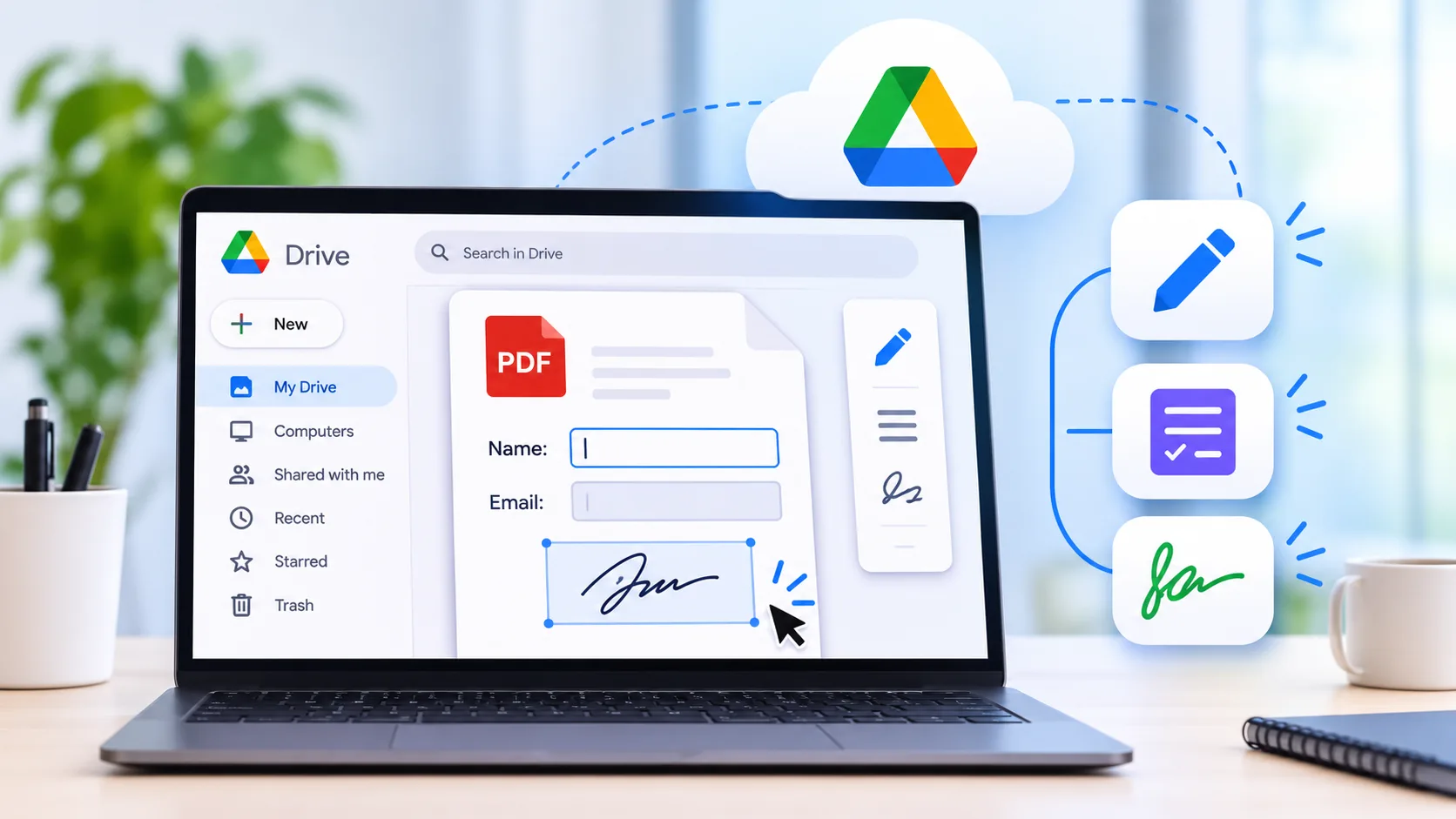

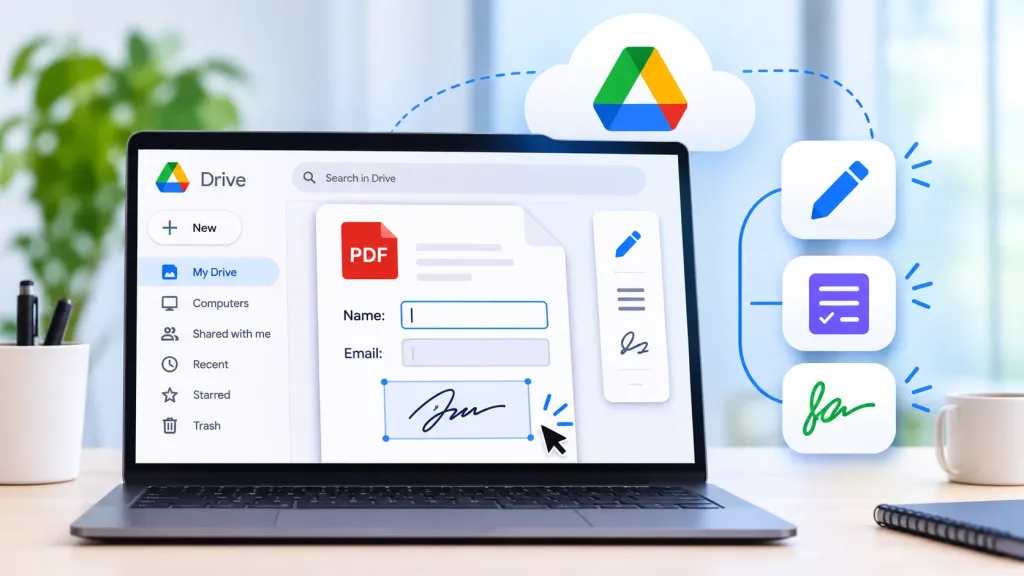
A team that keeps its files in Google Drive loses time every time a PDF has to leave it. Someone downloads the lease or the invoice, edits it on a desktop, saves a new copy, uploads it again, and then the folder holds two versions, and nobody is sure which one is current. A PDF editor that opens a file straight from Drive and writes the changes back to the same file removes that round trip.
This guide compares the main options for teams that work in Google Drive. It looks at how each tool connects to Drive, what the free plan covers, what requires a paid plan, and how each one is priced. Plans and limits change, so confirm current details on each provider’s pricing page before you commit.
What a Drive connection actually covers
Tools describe their Google Drive support in similar words, so it helps to separate three different things:
- Opening a file from Drive. You can start from the file in its existing location, instead of downloading it first. Almost every tool on this list does this.
- Saving changes back to the same file. The edited version replaces the original in Drive, so the folder keeps one copy rather than three. This is the part that varies most between tools.
- Respecting Drive permissions and shared drives. If your team works in a shared drive, check that the tool opens files there and keeps the access rules you already set.
Two more needs usually come up alongside the Drive connection. Fillable fields let a recipient complete a form on screen, and a signature workflow lets you send a document out and see who has signed. Google Drive does not do either on its own, which is why most teams add a tool rather than relying on Drive alone.
The options compared
1. Lumin: edit, fill, and sign with changes saved back to Drive
Lumin is a document workflow platform. Teams edit PDFs in the browser, build fillable forms, send documents for signature, and track them in one place, rather than moving between a PDF tool, a separate signing tool, and a folder of drafts.
The Drive connection is the reason most teams find it. Right-click a PDF in Drive, choose Open with, and the file opens in Lumin. Lumin’s product page states that changes are saved directly to Drive without a download or re-upload, and that the integration works with shared drives while keeping Drive permissions and folder structures in place. Lumin runs in a browser on any operating system, and there are apps for Mac, Windows, iOS, and Android for anyone who prefers one.
The free plan covers basic PDF editing and basic eSignatures, with an allowance of 3 documents per month. Paid plans add editing the raw text inside a PDF, creating fillable fields, and redaction. Pricing is listed per team rather than per user: a Starter plan at $9 per month with 10 documents, a Pro plan at $19 per month per team with 200 documents team-wide and document collaboration, and a Business plan at $99 per month per team that adds member access controls and domain controls. The Lumin pricing page lists current plans and the tools included in each.
Best for: Teams that store documents in Google Drive and want editing, fillable forms, and signing from one account.
Limitation: The free allowance is 3 documents a month, and a document counts as used once you share, download, print, or sync it. A team that handles paperwork every week will move to a paid plan quickly.
2. DocHub: Drive, Gmail, and Classroom with a small free allowance
DocHub is a browser-based PDF editor built around Google Workspace. It connects to Google Drive, Gmail, and Google Classroom, as well as Dropbox and OneDrive, so a file can be opened from Drive, edited or signed, and saved back without a manual download.
DocHub’s own documentation describes a free plan that covers 3 completed documents per month, 5 signed PDFs, 3 signature requests, 3 fillable PDFs, and 3 reusable templates. Paid plans remove those caps and are priced per user, listed on review sites at around $8 per user per month for Basic and $12 per user per month for Pro.
Best for: Individuals and small teams that sign and annotate a few documents a month from inside Gmail or Drive.
Limitation: Per-user pricing adds up as the team grows, and the free allowance runs out fast in a month with any real volume.
3. Adobe Acrobat: a wide toolset, priced per license
Adobe Acrobat is a desktop and web application for PDF work. Acrobat Reader is free and covers viewing, annotating, filling in forms, and signing. The paid plans add editing, conversion, and page tools. Acrobat Pro adds the features that deal with scans: turning scanned pages into searchable, editable text, redaction, and comparing two versions of a file.
Adobe’s documentation describes prebuilt connections to Google Drive, OneDrive, Dropbox, and Box, so files can be opened and saved from cloud storage without leaving Acrobat. Adobe lists Acrobat Standard at $14.99 per month and Acrobat Pro at $19.99 per month on an annual plan billed monthly. Adobe also confirms that it stopped selling perpetual versions after Acrobat 2020, although a one-time purchase of Acrobat Pro 2024 provides three years of desktop access without the online services.
Best for: Offices that process scanned documents, need redaction, or want a wider set of editing and form tools.
Limitation: Pricing is per license, so the cost rises with every person who needs full editing, and the scan and redaction tools are only on the Pro tier.
4. Xodo: browser tools with a cloud storage connection
Xodo, from Apryse, covers online tools in the browser and a desktop application, Xodo PDF Studio. Review listings record integrations with Google Drive, Dropbox, and OneDrive across both.
Xodo’s own plan guide describes a free web plan limited to one file download per day with 1GB of storage, with the paid web plan at $7.99 per month billed yearly or $10.99 billed monthly. The desktop application is a separate subscription at $9.99 per month billed yearly or $19.99 monthly, with a perpetual license also offered.
Best for: Individuals who want straightforward browser tools and the option of a desktop application.
Limitation: One download a day makes the free plan a trial rather than a working tool, and the web and desktop plans are billed separately.
5. Google Docs: free, built in, and limited to text
Google Drive has a built-in route. Right-click a PDF, choose Open with, and select Google Docs. Drive converts the file into an editable document you can change, share, and comment on with the rest of your team, then download again as a PDF.
It works best on plain, text-heavy documents. Complex layouts, columns, and tables often come back arranged differently, and a scanned page may not convert into usable text at all. Google Docs also does not create fillable fields or signature fields, so forms and signing need another tool.
Best for: Quick text changes to a simple document, at no extra cost, when the layout does not have to survive.
Limitation: Layout changes on conversion, no fillable forms, and no signature workflow.
Comparison: how each option handles Drive
| Tool | Google Drive connection | Free option | Pricing model |
| Lumin | Open a file from Drive and save changes back to it, including in shared drives | Free plan, 3 documents per month | Per team, paid plans from $9 per month |
| DocHub | Opens and saves files from Drive, Gmail, and Classroom | Free plan, 3 completed documents per month | Per user, listed from around $8 per month |
| Adobe Acrobat | Prebuilt connection to Drive, OneDrive, Dropbox, and Box | Free Reader for viewing, annotating, filling, and signing | Per license, Standard $14.99 and Pro $19.99 per month |
| Xodo | Integrations with Drive, Dropbox, and OneDrive | Free web plan, 1 file download per day | Per user, web plan from $7.99 per month billed yearly |
| Google Docs | Built into Drive | Included with a Google account | No extra cost |
Confirm current plans and limits on each provider’s site before you choose.
How to choose
If you keep your documents in Google Drive and also need forms and signatures, Lumin is the closest fit in this comparison, because editing, fillable fields, and signing are in the same account, and the edited file goes back to Drive.
If you only sign or annotate a handful of files a month, DocHub’s free plan may cover you, as long as you stay inside its monthly counts.
If scanned documents are a regular part of the job, Acrobat Pro converts scans into searchable text. Check whether the per-license cost works for the number of people who need it.
If you need one text change on a simple document today, open it with Google Docs and check the result before you look for anything else.
Steps to test a Drive workflow before you commit
- Pick three real files: a text-heavy document, a form someone has to complete, and a scanned page.
- Open each one from Drive rather than uploading a copy, so you are testing the connection and not just the editor.
- Make an edit, save, and then check Drive. Confirm whether the original file was updated or a second file appeared.
- Repeat the test from a shared drive, with a colleague who has view-only access, and check what they can see.
- Send one document for signature to your own second address and sign it on a phone.
- Count how many documents your team completes in a normal month, then compare that number with each free allowance.
Common mistakes
- Judging a tool on the free plan alone. Free allowances are usually counted per month and are easy to exhaust in a busy week.
- Assuming every edit syncs back. Some tools save a new copy instead of updating the original, which is how duplicate versions start.
- Using personal Google accounts. Files created under one person’s account leave with them. Use an organization account and a shared folder.
- Expecting a converted scan to be accurate. Run a scan through the tool, then search for words you know are on the page before you rely on it.
FAQ
Can you edit a PDF directly in Google Drive?
Not with Drive alone. You can open a PDF with Google Docs, which converts it into an editable document, or connect a PDF editor that opens the file from Drive and saves the changes back to it.
Will editing a PDF in Google Docs keep the original layout?
Often not. Google Docs converts the file into its own format, and complex layouts, columns, and tables frequently shift. For a document where the layout matters, use a PDF editor that edits the file in place.
Which of these tools can create fillable forms?
Lumin, Adobe Acrobat, DocHub, and Xodo all list form creation, although it usually requires a paid plan. Google Docs does not create fillable PDF fields. Check which plan includes form creation before you buy.
Do recipients need an account to sign?
With Lumin, signers receive an email link and can sign from any device without creating an account. Confirm this for any other tool before you rely on it, because the answer differs by provider and sometimes by plan.
What happens to a document stored in a shared drive?
It depends on the tool. Lumin’s product page states that its Drive integration works with shared drives and keeps the existing permissions and folder structure. Test this with a colleague before you move a whole team across.
Conclusion
For a team that works in Google Drive, the useful question is not which PDF editor has the longest feature list; it is which one lets a file stay where it already is. Lumin covers editing, fillable forms, and signing from one account and writes changes back to the file in Drive, which is why it leads this comparison. Adobe Acrobat covers scanned documents and redaction, DocHub covers light use inside Gmail and Drive, Xodo covers individual use, and Google Docs handles a quick text change at no cost. Test each one on three of your own files, check what happens in Drive afterward, and count your monthly volume against the plan limits before you choose.